
Hướng dẫn sử dụng NoraClass
How to Design a 3D Simulated DroneSoccer Formation
This guide shows students and teachers how to design a 3D simulated flying formation for DroneSoccer according to their own ideas. Students and teachers can also design 3D flying formations for classroom presentations or for assignments on the Canvas/Cohota LMS platform.
By NoraClass - Thư viện & Công cụ thiết kế bài giảng 3D · August 6, 2025

NoraClass 3D lecture design tool
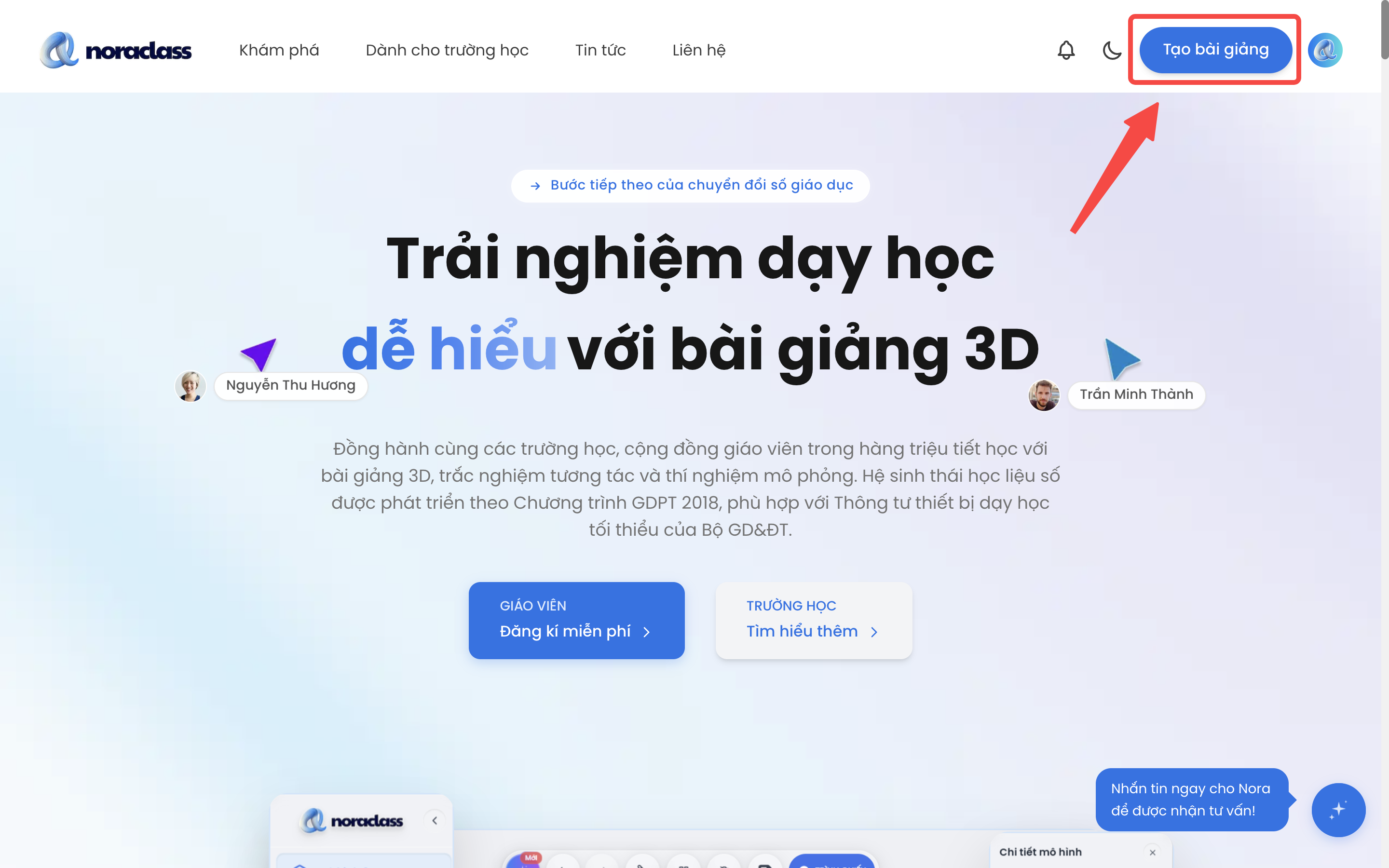
Students or teachers can create a brand-new lecture by visiting the noraclass.com website and logging in, or signing up if they do not yet have an account.
After logging in or signing up successfully, students and teachers click the "Create lecture" button in the top-right corner of the screen and select "Create 3D lecture".
Open the NoraClass 3D lecture design toolhere.
![[IMG]](https://cdn.sanity.io/images/jv13pgfv/production/7087e6c3bdd2cbd6e13c371c4986aac4902b7377-2880x1800.png)
Students and teachers can also create a 3D lecture directly on the Canvas/Cohota LMS platform by selecting "NoraClass 3D learning materials library".
After opening it successfully, go to "My learning materials", click "Create new material" and select "Create 3D lecture" in the same way.
![[IMG]](https://cdn.sanity.io/images/jv13pgfv/production/cb6c6963380ff1f372579eb500a4dfe498ac3eef-2880x1800.png)
![[IMG]](https://cdn.sanity.io/images/jv13pgfv/production/0958a53f8b9b58f52b79260c0739ec51da01f86c-2880x1800.png)
Adding 3D simulation models to a lecture
After opening the 3D design tool, select "3D models" in the left toolbar to choose the 3D model you want to add to the lecture.
Students and teachers should select "DroneSoccer" to choose the 3D models dedicated to the DroneSoccer sport.
To insert a 3D model into the lecture, students and teachers can click the image of the 3D model they want to add.
Students and teachers can type keywords into the "Search 3D models" box to find the content they want quickly (for example: "Round gate", "Field", "DroneSoccer").
![[IMG]](https://cdn.sanity.io/images/jv13pgfv/production/a45a25d68d2e3ffdc87db50ea0995506260ba964-2880x1800.png)
![[IMG]](https://cdn.sanity.io/images/jv13pgfv/production/798c9a32165c2d79645b2a224a33616719a8ddfe-2880x1800.png)
Adding text to a lecture
After adding a 3D model, students and teachers can change its position, rotation and size by dragging the arrows inside the 3D model in the lecture.
They can also customise the size, position and rotation in the detailed editing panel on the right of the screen.
The original sizes of the obstacles, landing pads and the DroneSoccer field have been designed to real-world scale.
![[IMG]](https://cdn.sanity.io/images/jv13pgfv/production/9318e910ebfc5dbf2dfd7f9c7d592928c9bf1eee-2880x1800.png)
Adding annotations to a lecture
In the "Text" section of the left toolbar, students and teachers can also easily attach annotations directly to the 3D model, to clarify the structure, function or key information of the 3D simulated flying formation.
Steps to add an annotation to a lecture:
- Select "Annotation" in the window that appears.
- Enter the name of the annotation to create.
- Click "Create" to start attaching the annotation to the model in the lecture.
- Click the desired position on the 3D model to attach the annotation.
- Add the content of the annotation in the detailed editing panel on the right of the screen if needed.
Adding a narration to a lecture
When you select "Narration" in the left toolbar, students and teachers can easily add a presentation that includes a title, content and illustrative images, to clarify knowledge, guide the lesson coherently and add visual interest to the 3D simulated flying formation.
Steps to add narration content to a lecture:
- Select "Narration" in the left toolbar.
- Enter a title and a description suited to the lesson in the window.
- Click "Upload images" to add one or more illustrative images to support the narration content (if needed).
- Click "Save" to finish and save the narration content.
Saving the designed lecture information
Once the 3D lecture design is complete, students and teachers can save the lecture information so it can be easily found and accessed during teaching.
Steps to save the designed lecture information:
- Click "Save lecture" to open the lecture save window.
- Click "Take photo" to capture the lecture design space as the cover image of the 3D lecture. Click "Upload" to choose an image from your device and upload it as the cover image.
- Then click "Next" to move to the next window.
- For the privacy option, select "Public" if you want others to be able to view your lecture and vice versa.
- For the option allowing others to copy the lecture, select "Yes, no problem" if you want to allow others to copy your lecture and vice versa.
- Then click "Finish" to save the lecture information.
Sharing a lecture by QR code or link
Students and teachers can quickly share the lecture by QR code or link via Zalo, Google Classroom, Canvas/Cohota LMS, or present it in class.
Click the share button in the top corner of the presentation screen to get the QR code and a quick access link.
You can print the QR code, send it via Zalo or Google Classroom, or insert the link into a class post.
Access the sample 3D simulated flying formation using the access linkhere.
Closing remarks
Once you have mastered these steps, teachers can easily design and customise a 3D simulated flying formation on NoraClass to match their teaching goals and style. Students can also use it to create 3D flying formations for classroom presentations or to complete assignments related to the DroneSoccer sport.
Need advice?
Leave your details and we will get back to you.