
Hướng dẫn sử dụng LMS
How to Add SCORM E-Learning Lectures, Interactive Content and 3D Learning Materials on the LMS
A guide to adding SCORM e-learning lectures, interactive content and 3D learning materials to the LMS, helping teachers deliver vivid, visual learning content and improve the learning experience for learners.
By Công ty CP Công nghệ Giáo dục Rebo · January 21, 2026
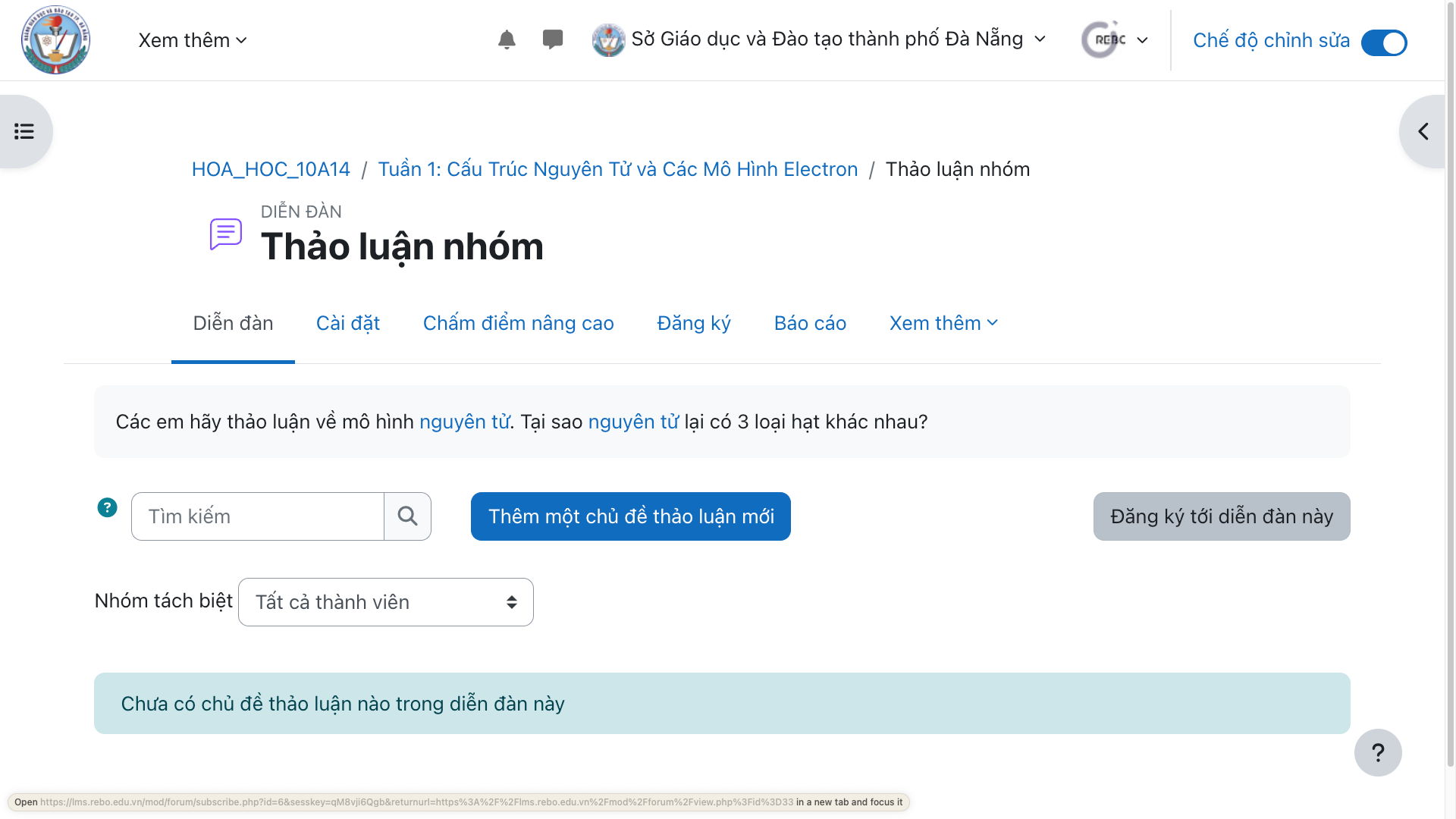
Step 1: Go to the course you want to add to, to check it
![[IMG]](https://cdn.sanity.io/images/jv13pgfv/production/2a64d33c58d82e3b7ca83444515d8de124718ce8-2880x1800.png)
Step 2: Switch to "Edit" mode.
![[IMG]](https://cdn.sanity.io/images/jv13pgfv/production/b1bec2c0474380dc8a88087608ea1b1cc547ef90-2880x1800.png)
Step 3: Click the button to create a section if the course does not have one yet
![[IMG]](https://cdn.sanity.io/images/jv13pgfv/production/d10c8844de185596f267526a94c6bee692e717ca-2880x1800.png)
Step 4: Click "Add an activity or resource" to choose the learning resource you want to add to the section.
![[IMG]](https://cdn.sanity.io/images/jv13pgfv/production/ee7cb1fe1ecd68a4fe868c0f9a4e23e32bcf0f42-2880x1800.png)
Step 5: Choose the type of learning material you want.
- For 3D simulation learning materials
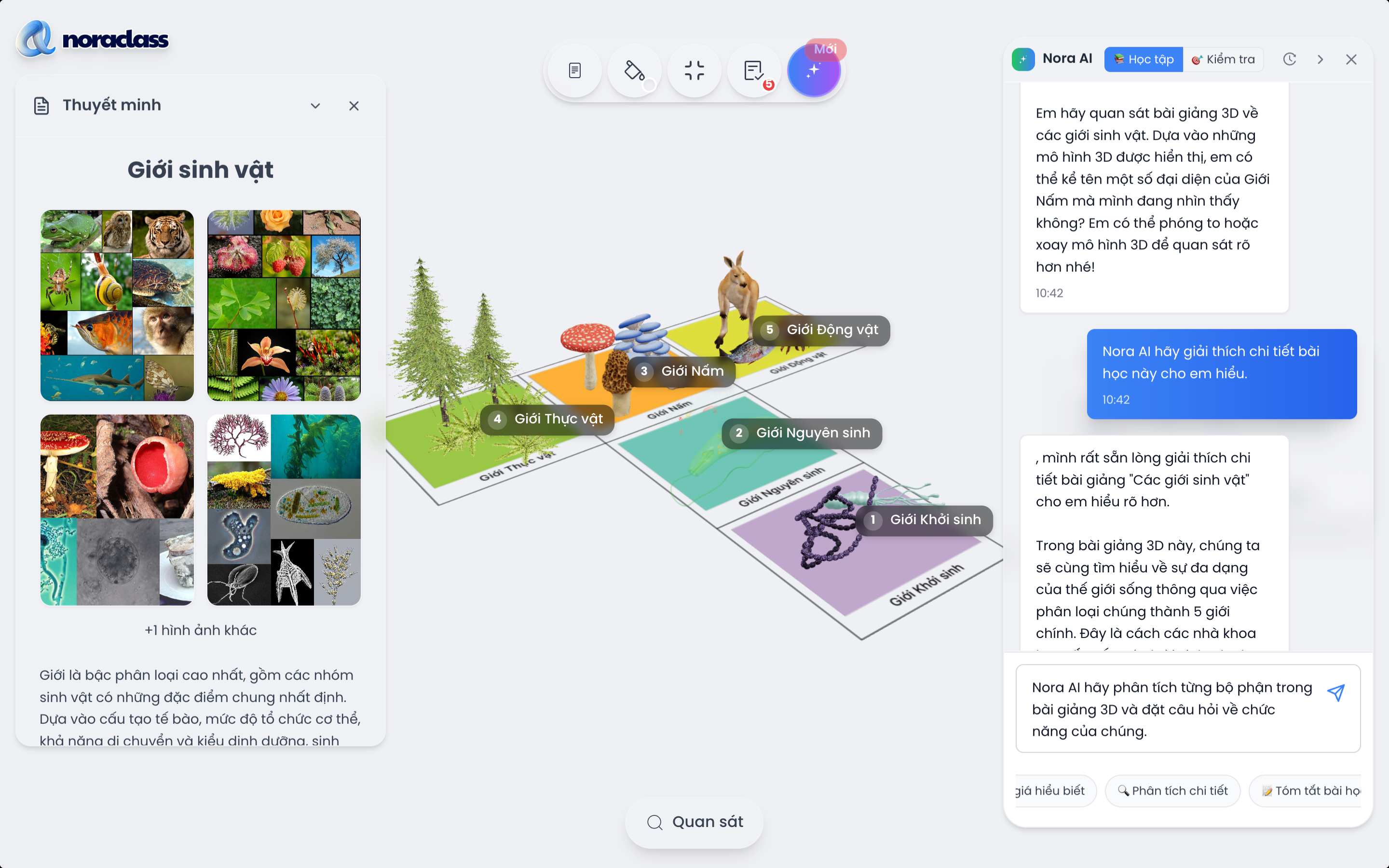
Select "3D Learning Materials Library" to add 3D learning materials to the section.
Enter the name and information of the learning material.
Click "Save and display" to add it to the section.
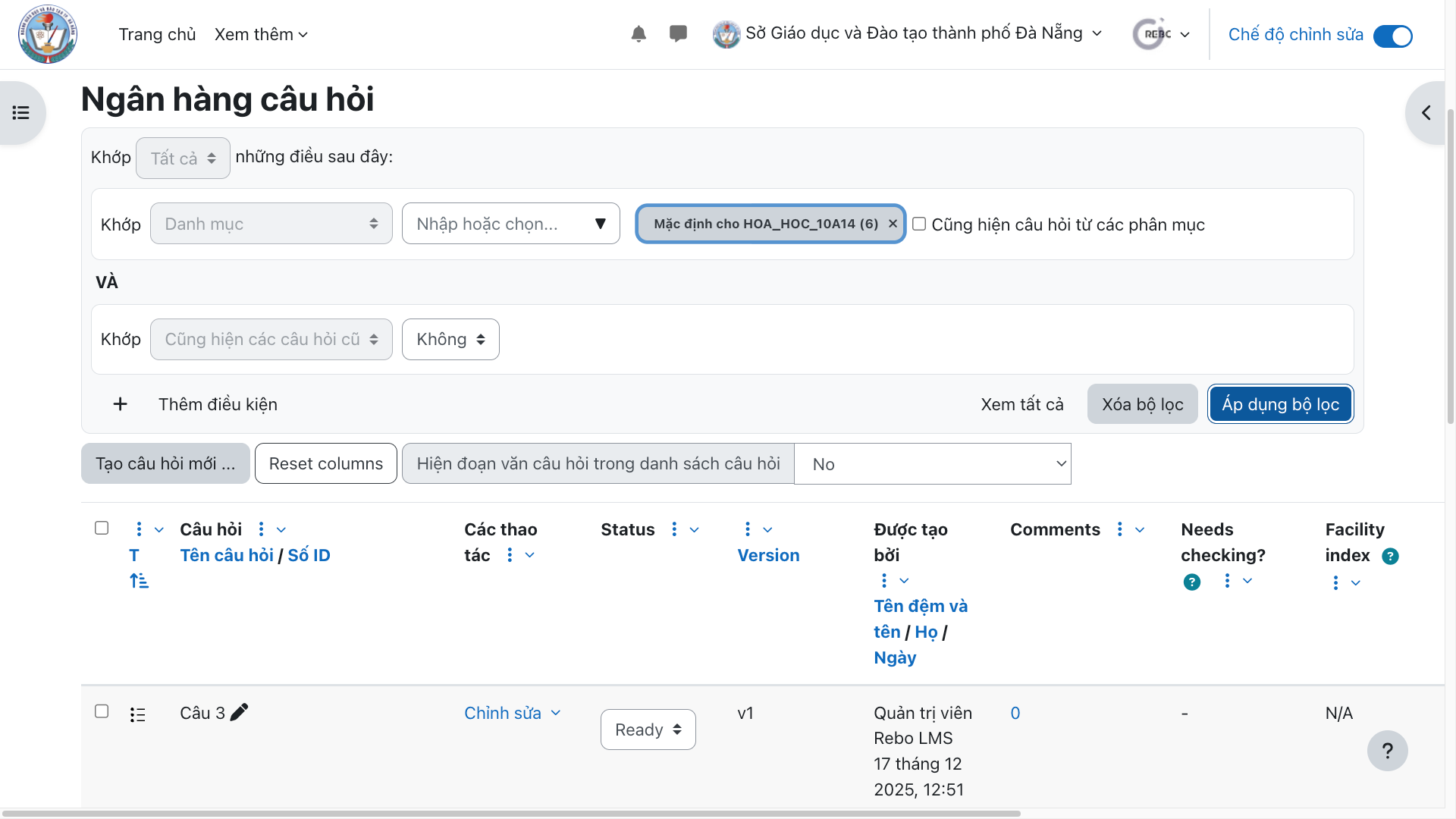
![[IMG]](https://cdn.sanity.io/images/jv13pgfv/production/430f4c0c7828c29ec2c011dd2d77e9ff1dbf5233-1920x1080.png)
![[IMG]](https://cdn.sanity.io/images/jv13pgfv/production/1866998b739a674dbeb672dce3f690c04c3aa607-1920x1080.png)
- SCORM e-learning lectures:
Select "SCORM package" to add an e-learning lecture to the section.
Enter the name and information of the learning material.
Upload the SCORM file in a suitable format from your device.
Click "Save and display" to add it to the section.
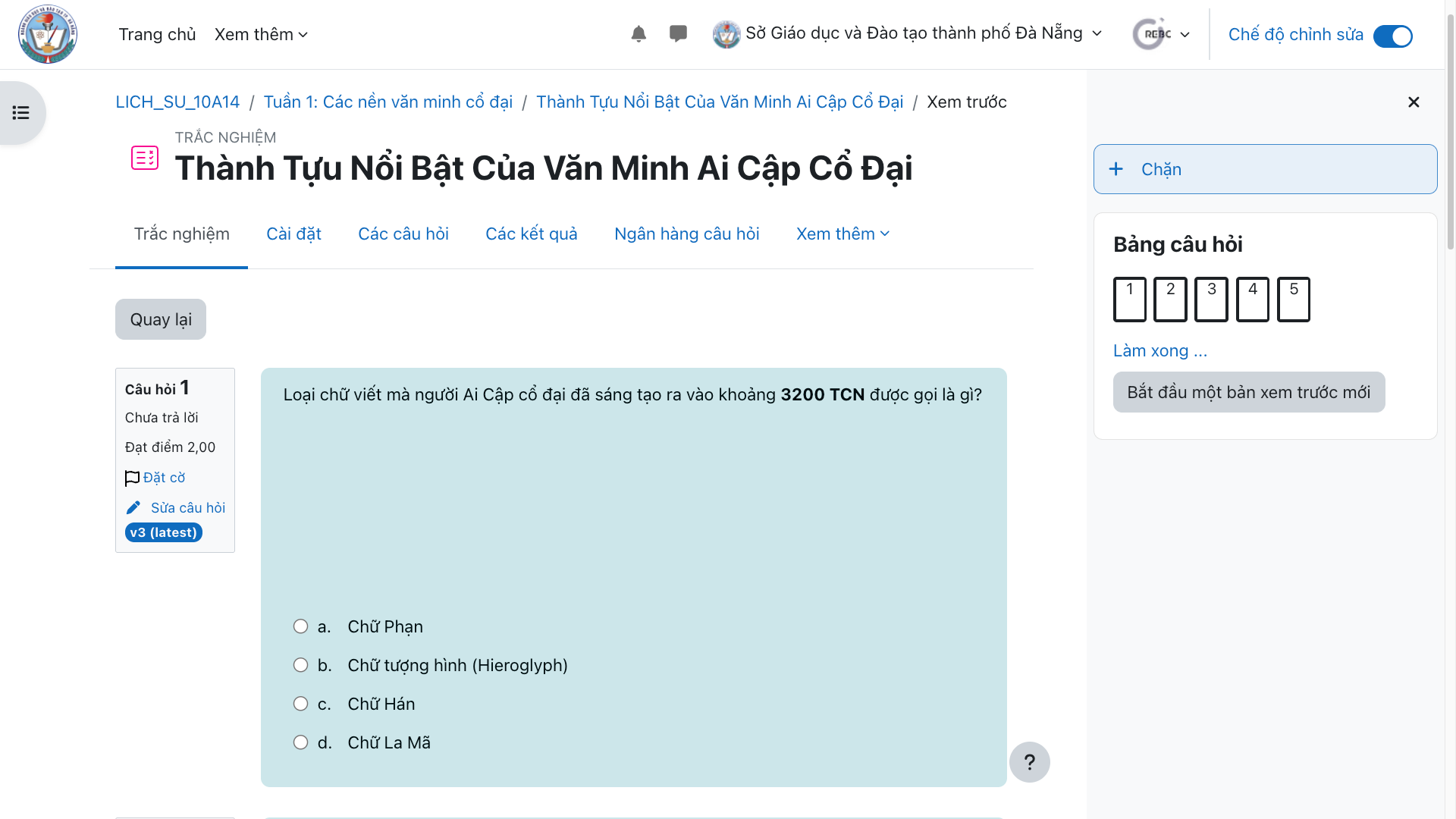
![[IMG]](https://cdn.sanity.io/images/jv13pgfv/production/2f1f7bb713c68607c3893021e27fb0dd67c665d6-1920x1080.png)
![[IMG]](https://cdn.sanity.io/images/jv13pgfv/production/dfe320b2fccd00490a91bec74dbaf6ad7b4ab12e-1920x1080.png)
- Interactive learning materials:
Select "Interactive Content" to add interactive learning material to the section.
Enter the name and information of the learning material.
Choose an interactive format and edit the interactive content.
Click "Save and display" to add it to the section.
Interactive learning materials on the LMS support more than 50 vivid content formats, helping strengthen the learning experience, promote interaction and improve learners' uptake.
![[IMG]](https://cdn.sanity.io/images/jv13pgfv/production/8cead2d774e2b249a8d29a1d0db6fbe87277f7f4-1920x1080.png)
![[IMG]](https://cdn.sanity.io/images/jv13pgfv/production/025bf95ed7db844e00672ba8836ebaba951a2184-1920x1080.png)
Need advice?
Leave your details and we will get back to you.