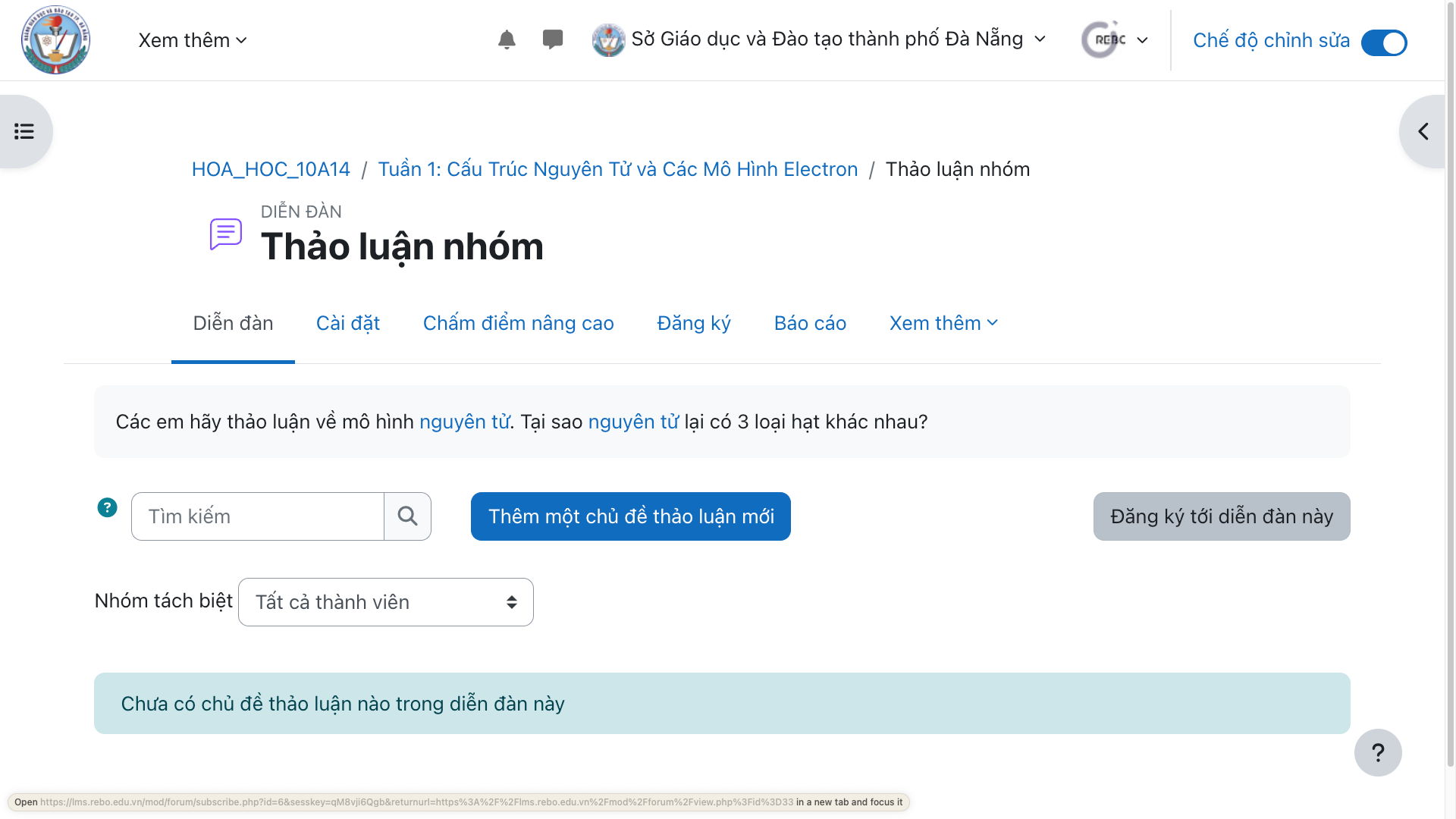

Hướng dẫn sử dụng LMS
How to Create Essay Assignments and Quizzes on the LMS
A detailed guide to creating essay assignments and quizzes on the LMS to the system standard, helping teachers design assessment content quickly, manage it easily and deliver it effectively for each course.
By Công ty CP Công nghệ Giáo dục Rebo · January 21, 2026
How to create an essay assignment on the learning management system (LMS).
Step 1: Go to the course where you want to add the essay assignment.
![[IMG]](https://cdn.sanity.io/images/jv13pgfv/production/2a64d33c58d82e3b7ca83444515d8de124718ce8-2880x1800.png)
Step 2: Switch to "Edit" mode.
![[IMG]](https://cdn.sanity.io/images/jv13pgfv/production/b1bec2c0474380dc8a88087608ea1b1cc547ef90-2880x1800.png)
Step 3: Click the button to create a section if the course does not have one yet
![[IMG]](https://cdn.sanity.io/images/jv13pgfv/production/d10c8844de185596f267526a94c6bee692e717ca-2880x1800.png)
Step 4: Click "Add an activity or resource" to choose the learning resource you want to add to the section.
![[IMG]](https://cdn.sanity.io/images/jv13pgfv/production/ee7cb1fe1ecd68a4fe868c0f9a4e23e32bcf0f42-2880x1800.png)
Step 5: Select "Assignment" to add an assignment to the section.
![[IMG]](https://cdn.sanity.io/images/jv13pgfv/production/3c4307a577650bbaa4151480ff0f6b39e2eb53ce-1920x1080.png)
Step 6: Enter the full information and content of the assignment, including:
Assignment name
Assignment description
Upload files from the device (if needed)
Choose the submission type
Choose the publishing schedule and the deadline
![[IMG]](https://cdn.sanity.io/images/jv13pgfv/production/c126ad099772764c126695bcb488be9a32a12138-1920x1080.png)
![[IMG]](https://cdn.sanity.io/images/jv13pgfv/production/bf1a2dd1011d99b307a5ce1f261610c7cccdad03-1920x1080.png)
Step 7: Click "Save and display" to add it to the section.
![[IMG]](https://cdn.sanity.io/images/jv13pgfv/production/339781ce2cd06ae699f74b477f609183b4340d75-1920x1080.png)
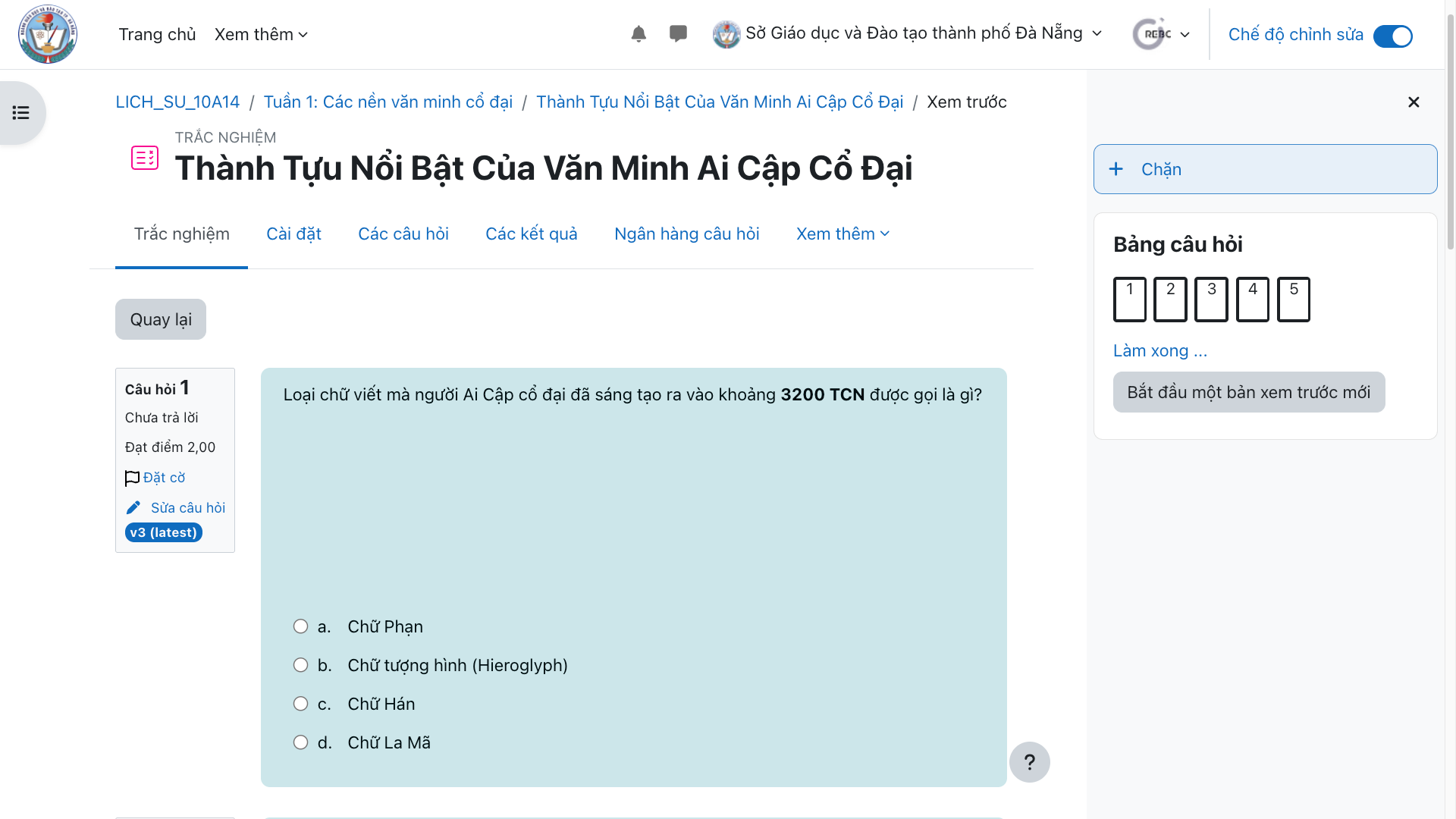
How to create a quiz on the learning management system (LMS).
Step 1: Go to the course where you want to add the quiz.
Step 2: Switch to "Edit" mode.
Step 3: Click the button to create a section if the course does not have one yet
Step 4: Click "Add an activity or resource" to choose the learning resource you want to add to the section.
Step 5: Select Quiz to add the quiz to the section.
![[IMG]](https://cdn.sanity.io/images/jv13pgfv/production/e7f43d0f1dd7ff1543eaa2fd53ce74691db6ef38-1920x1080.png)
Step 6: Enter the quiz name and click "Save and display" to add it to the section.
![[IMG]](https://cdn.sanity.io/images/jv13pgfv/production/08754ab379a1bcf638e39bb02b14fba57eba8774-1920x1080.png)
![[IMG]](https://cdn.sanity.io/images/jv13pgfv/production/8e02b91a2179644233e7be02b0e50c0f32a225f8-1920x1080.png)
Step 7: Click "Add question" or go to the "Questions" section.
![[IMG]](https://cdn.sanity.io/images/jv13pgfv/production/65949ecca418255383f4f00a2fc2993cf8481718-1920x1080.png)
Step 8: Add a new question to the quiz.
![[IMG]](https://cdn.sanity.io/images/jv13pgfv/production/414b6f5058db9a1f1618ed36de0e7ea880a6b40d-1920x1043.png)
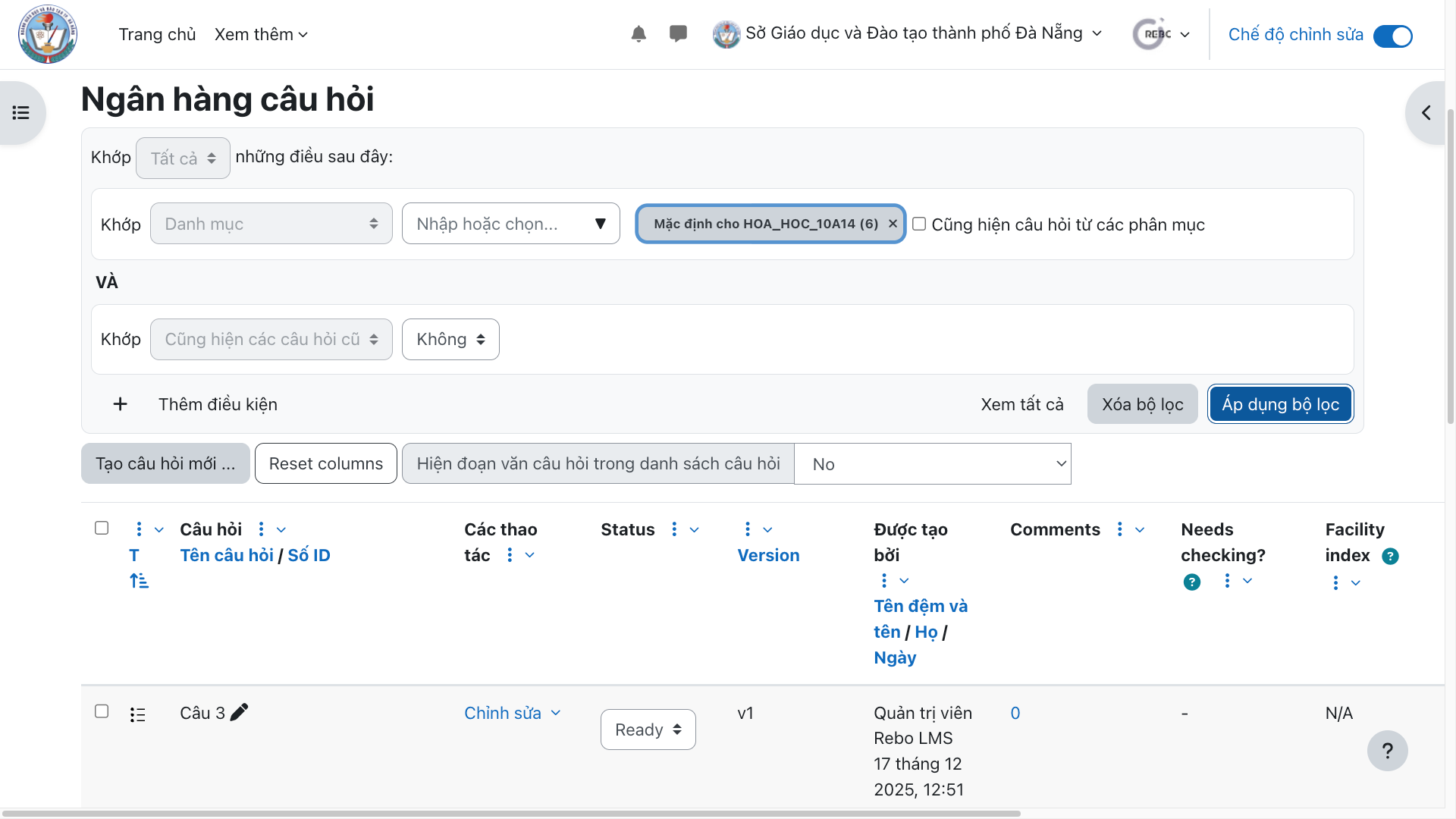
You can also add questions directly from the question bank that already exists at the unit or course level. Detailed guide atHow to build and manage a question bank on the LMS
Step 9: Choose the question type that suits your teaching needs and lesson plan.
![[IMG]](https://cdn.sanity.io/images/jv13pgfv/production/35fe723a244b97fee5b24d28e9481379649f48dd-1920x1080.png)
Step 10: Fill in the required information, depending on the question type, including:
Question name
Question points
Question content
List of answers
Automatic feedback for correct/incorrect answers
Maximum number of attempts allowed
![[IMG]](https://cdn.sanity.io/images/jv13pgfv/production/734ab3f3542e0f3301f41a322b95554a326332a5-1920x1080.png)
Note: fields marked with an exclamation mark (!) are required.
Step 4: Click "Save changes" and return to the quiz.
![[IMG]](https://cdn.sanity.io/images/jv13pgfv/production/d80da43b073e60f6eeacb717b38a12b664f77a15-1920x1080.png)
Step 5: Adjust the position and point distribution of each question in the quiz.
![[IMG]](https://cdn.sanity.io/images/jv13pgfv/production/8d7a8e910edaa1665e5c1f25314124252cb02d16-1920x1080.png)
Need advice?
Leave your details and we will get back to you.