
← All articles
Hướng dẫn sử dụng LMS
How to Build and Manage a Question Bank on the LMS
The question bank lets users easily add, edit, copy, and bulk import and export questions in the formats the LMS supports; it can also be shared flexibly at unit level or used directly in each course, optimising how assessment content is built and managed.
By Công ty CP Công nghệ Giáo dục Rebo · January 21, 2026
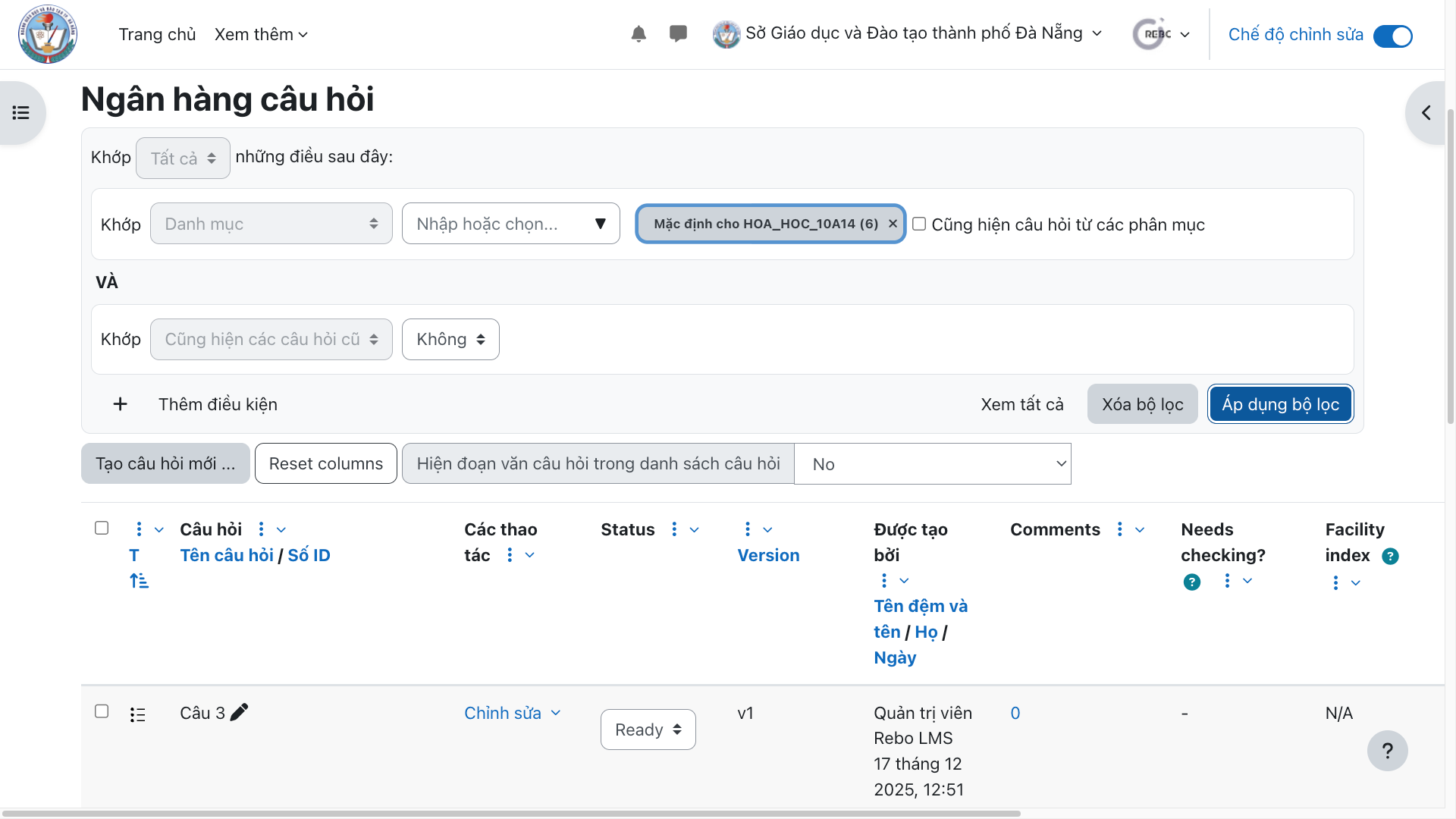
How to access the question bank of an educational institution.
Step 1: Go to the home page and select Question bank.
![[IMG]](https://cdn.sanity.io/images/jv13pgfv/production/6ca5627c63e0dd2ba0b6362c45bee9004e6c6232-2880x1800.png)
How to access the question bank of a course.
Step 1: Select the course whose question bank you want to access.
![[IMG]](https://cdn.sanity.io/images/jv13pgfv/production/cfa155347c1798ece1f1fe6b8f45f9ed54e0b3a8-1920x1080.png)
Step 2: Click "See more" and select "Question bank".
![[IMG]](https://cdn.sanity.io/images/jv13pgfv/production/396b8627d2d17a755d70d8afaf7fec5e48e1f0a6-1908x1040.png)
How to bulk import questions into the question bank.
Step 1: Select the bulk import mode for the question bank.
![[IMG]](https://cdn.sanity.io/images/jv13pgfv/production/2bd5fa16d533fb1d5079bc0e6e89c091d23d6e61-1920x1080.png)
Step 2: Select the file format of the question bank you want to import.
![[IMG]](https://cdn.sanity.io/images/jv13pgfv/production/f8e79375ef3428849622bf424548d5da58adb334-1920x1080.png)
Step 3: Upload the file from your device and click the import button to import the questions into the bank.
![[IMG]](https://cdn.sanity.io/images/jv13pgfv/production/481dc0ac49a355343ae2058d9a61a54004946165-1920x1080.png)
How to bulk export questions from the question bank.
Step 1: Select the bulk export mode for the question bank.
![[IMG]](https://cdn.sanity.io/images/jv13pgfv/production/4dc077cb9a4ee7690da0ff9a31aace2a5c39eff1-1920x1080.png)
Step 2: Select the file format you want to export the question bank to, then click Export questions to device.
![[IMG]](https://cdn.sanity.io/images/jv13pgfv/production/00fd6a06f9a8fbd75dc85506d4b208f064e1dc5a-1920x1080.png)
How to add a question to the question bank.
Step 1: Click "Add new question" in the question bank.
![[IMG]](https://cdn.sanity.io/images/jv13pgfv/production/4664f0852331db48303943a7536084c37abc53d0-1920x1080.png)
Step 2: Select the question type that suits your teaching needs and lesson plan.
![[IMG]](https://cdn.sanity.io/images/jv13pgfv/production/96ea0e343b664f82964462957c0191e40a4e274d-1920x1080.png)
Step 3: Fill in the required information, depending on the question type, including:
Question name
Question points
Question content
List of answers
Automatic feedback for correct/incorrect answers
Maximum number of attempts allowed
![[IMG]](https://cdn.sanity.io/images/jv13pgfv/production/734ab3f3542e0f3301f41a322b95554a326332a5-1920x1080.png)
Note: fields marked with an exclamation mark (!) are required.
Step 4: Click "Save changes" and return to the question bank.
![[IMG]](https://cdn.sanity.io/images/jv13pgfv/production/d80da43b073e60f6eeacb717b38a12b664f77a15-1920x1080.png)
Step 5: Click the edit button if you want to change a question you have created in the question bank.
![[IMG]](https://cdn.sanity.io/images/jv13pgfv/production/4fd610b7862923e4160f05a87db67547542269b0-1920x1080.png)
How to preview, copy and delete a question in the question bank.
Step 1: Click the edit button of the question in the question bank.
![[IMG]](https://cdn.sanity.io/images/jv13pgfv/production/4b7b6a789b091d633ebc89cbf44da04ba9cfa818-1920x1080.png)
Step 2: Choose the appropriate action: Preview, Delete, Copy, etc.
![[IMG]](https://cdn.sanity.io/images/jv13pgfv/production/2e405ab60f39e7b2b35720077eee74eb274fed21-1920x1080.png)
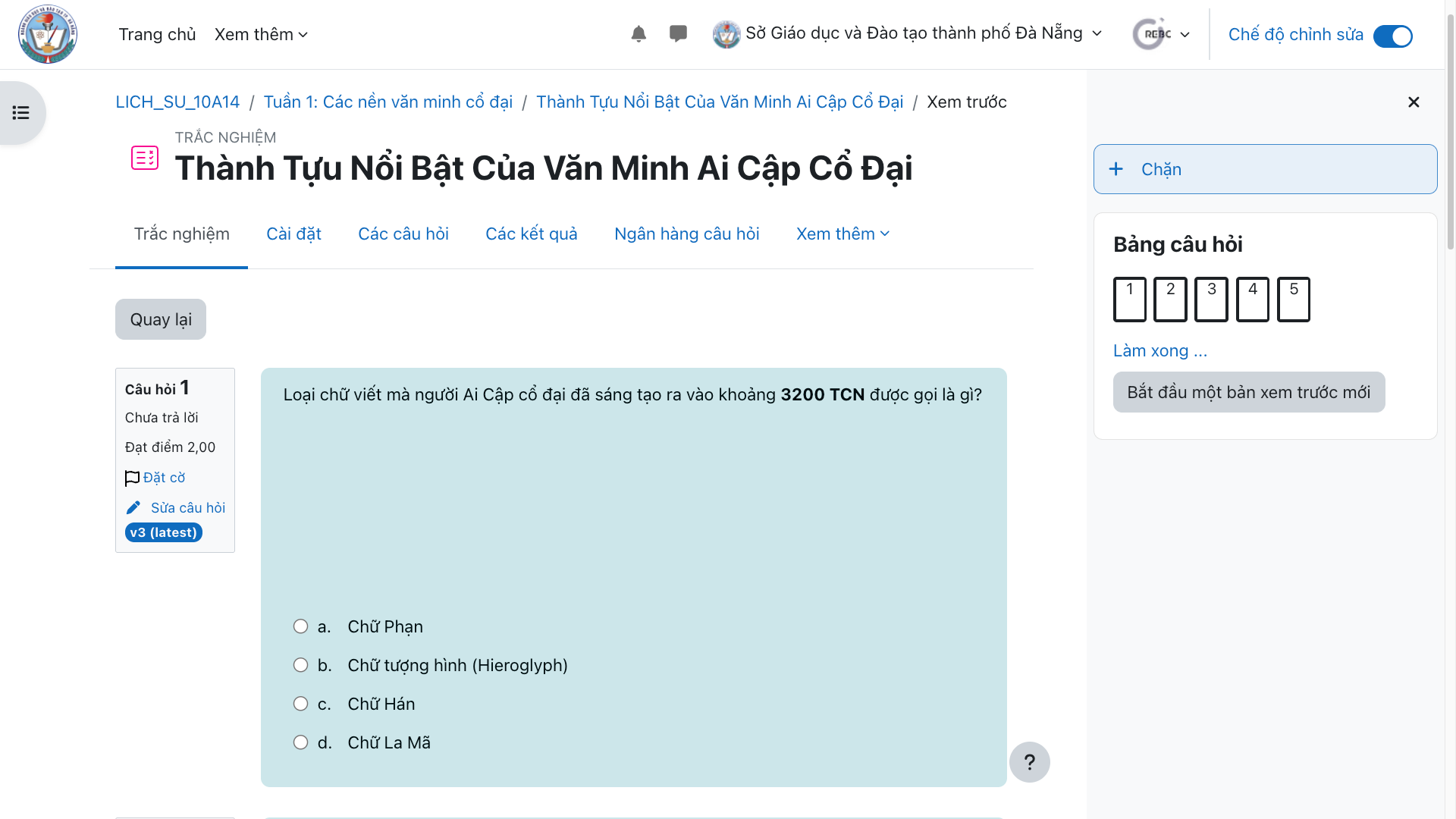
How to use the question bank to build a quiz.
Step 1: Go to the course where you want to add the quiz.
![[IMG]](https://cdn.sanity.io/images/jv13pgfv/production/2a64d33c58d82e3b7ca83444515d8de124718ce8-2880x1800.png)
Step 2: Switch to "Edit" mode.
![[IMG]](https://cdn.sanity.io/images/jv13pgfv/production/b1bec2c0474380dc8a88087608ea1b1cc547ef90-2880x1800.png)
Step 3: Click the button to create a section if the course does not have one yet
![[IMG]](https://cdn.sanity.io/images/jv13pgfv/production/d10c8844de185596f267526a94c6bee692e717ca-2880x1800.png)
Step 4: Click "Add an activity or resource" to choose the learning resource you want to add to the section.
![[IMG]](https://cdn.sanity.io/images/jv13pgfv/production/ee7cb1fe1ecd68a4fe868c0f9a4e23e32bcf0f42-2880x1800.png)
Step 5: Select Quiz to add the quiz to the section.
![[IMG]](https://cdn.sanity.io/images/jv13pgfv/production/e7f43d0f1dd7ff1543eaa2fd53ce74691db6ef38-1920x1080.png)
Step 6: Enter the quiz name and click "Save and display" to add it to the section.
![[IMG]](https://cdn.sanity.io/images/jv13pgfv/production/08754ab379a1bcf638e39bb02b14fba57eba8774-1920x1080.png)
![[IMG]](https://cdn.sanity.io/images/jv13pgfv/production/8e02b91a2179644233e7be02b0e50c0f32a225f8-1920x1080.png)
Step 7: Click "Add question" or go to the "Questions" section.
![[IMG]](https://cdn.sanity.io/images/jv13pgfv/production/65949ecca418255383f4f00a2fc2993cf8481718-1920x1080.png)
Step 8: Choose to add a question from the question bank.
![[IMG]](https://cdn.sanity.io/images/jv13pgfv/production/b79fdbe5020e9af35dea97428d06355f5423aceb-1920x1044.png)
Step 9: Choose the question bank by unit level and select the questions to add to the quiz.
![[IMG]](https://cdn.sanity.io/images/jv13pgfv/production/738930647d1415d01f9b2d9b2d02b28b93f4c4cc-1920x873.png)
![[IMG]](https://cdn.sanity.io/images/jv13pgfv/production/d7b224b3b80c59e7c172fb52e44c6a880edb46b4-1920x1080.png)
Need advice?
Leave your details and we will get back to you.