
Hướng dẫn sử dụng NoraClass
How to Customise and Design a 3D Lecture to Your Needs
This document guides teachers on customising the sample 3D lectures available from NoraClass, or designing new 3D lectures from their own ideas. Students can also refer to it to create 3D lectures for classroom presentations or to complete assignments about designing 3D lectures on the Cohota LMS platform.
By NoraClass - Thư viện & Công cụ thiết kế bài giảng 3D · August 6, 2025

NoraClass 3D lecture design tool
Teachers can create a completely new lecture, or reuse and customise existing sample lectures to suit their specific teaching goals and schedule.
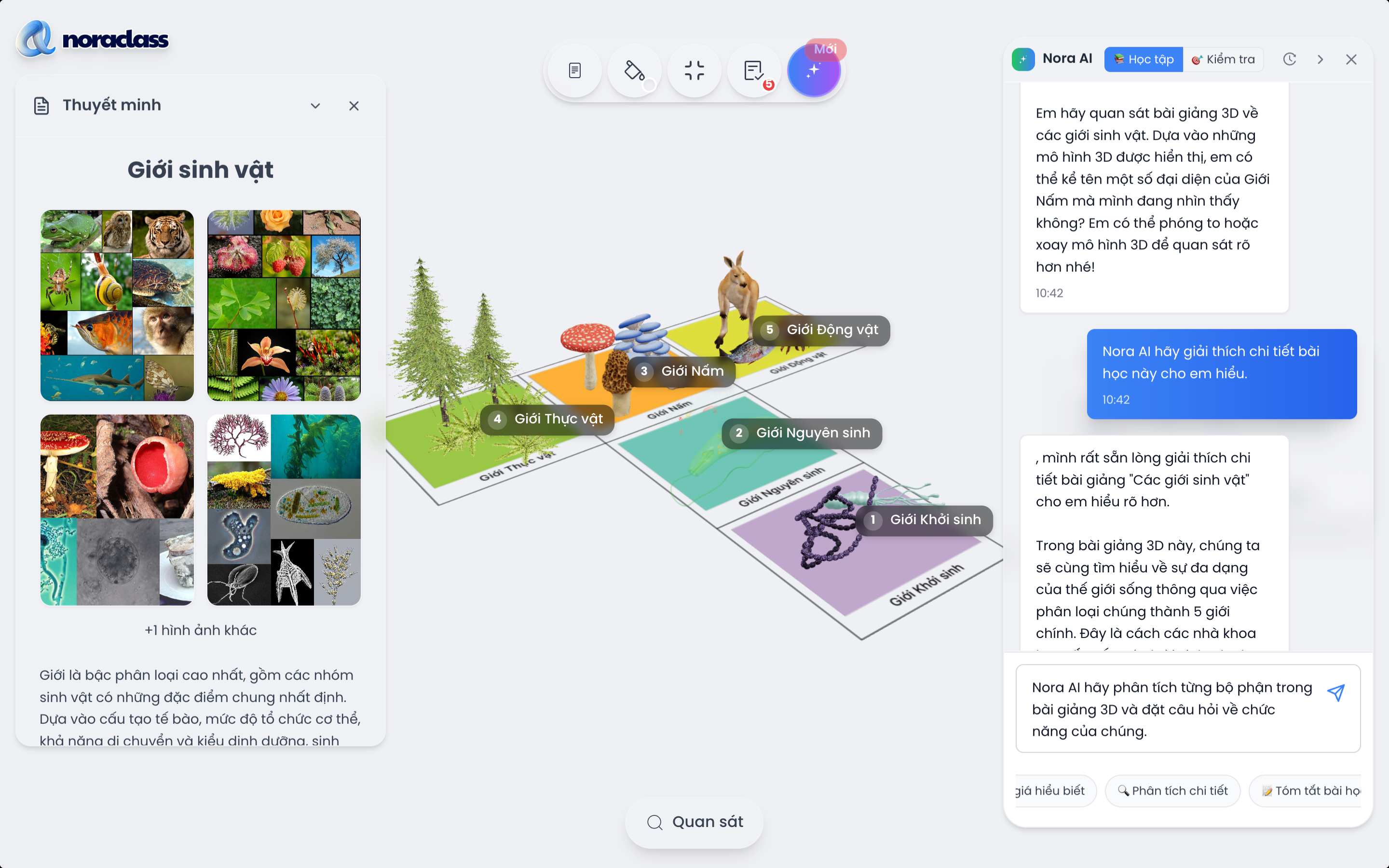
NoraClass provides a visual 3D simulation lecture design tool that lets teachers create vivid 3D lectures themselves.
The interface supports easy drag-and-drop operations on 3D models, allowing you to add annotations, interactive questions and vivid illustrative content.
This platform helps teachers deliver lessons effectively without requiring in-depth technical or graphic design knowledge.
![[IMG]](https://cdn.sanity.io/images/jv13pgfv/production/62e12fd7a981a6434b891d7acc7728f207b2c8fa-2880x1800.png)
![[IMG]](https://cdn.sanity.io/images/jv13pgfv/production/cf1aa590552595ec6053f331f534e22072fe346f-1280x800.png)
Adding a 3D simulation model to a lecture
When you select "3D models" in the left toolbar, teachers access NoraClass's library of 3D simulation models, which holds hundreds of vivid 3D models across many subjects.
How to add a 3D simulation model to a lecture:
- Choose the suitable subject: 3D simulation models are clearly categorised by subject, including Natural sciences, Biology, Chemistry, Mathematics, Geography, etc.
- Quick search for a model: enter keywords in the "Search 3D models" box to find the content you want quickly (for example: "bacteria", "cell", "lever").
- Insert a model into the lecture: click the image of a 3D simulation model to add it to the lecture design page.
- Customise the 3D model: after adding it to the lecture, teachers can adjust its size, position and rotation in the detailed editing panel on the right of the screen.
Adding text to a lecture
When you select "Text" in the left toolbar, teachers can easily insert content into the lecture as 2D text or raised 3D text, to clarify the content and make the lecture more visual.
Steps to add 2D or 3D text to a lecture:
- Select "2D text" or "3D text" in the window that appears.
- Enter the text content to be displayed.
- Customise the font, text size, number of characters per line and colour as you wish.
- Click "Create" to insert the 2D or 3D text into the lecture.
- Edit the details of the 2D or 3D text in the detailed editing panel on the right of the screen if needed.
Adding annotations to a lecture
In the "Text" section of the left toolbar, teachers can also easily attach annotations directly to the 3D model, to clarify the structure, function or key information of each component of the 3D model.
Steps to add an annotation to a lecture:
- Select "Annotation" in the window that appears.
- Enter the name of the annotation to create.
- Click "Create" to start attaching the annotation to the model in the lecture.
- Click the desired position on the 3D model to attach the annotation.
- Add the content of the annotation in the detailed editing panel on the right of the screen if needed.
Adding multimedia content (images and videos) to a lecture
When you select "Image" or "Video" in the left toolbar, teachers can easily insert multimedia content such as illustrative images or vivid videos into the lecture, to clarify knowledge, add liveliness and attract learners.
Steps to add an image to a lecture:
- Select "Image" in the left toolbar.
- Choose "Image library" if you want to use an existing image.
- Choose "Upload image" if you want to upload an image directly from your device.
- Drag and drop, or click, to select the image to upload from your device into the lecture.
- Click the "Upload" button to add the selected image to the lecture.
- Edit the details of the image in the detailed editing panel on the right of the screen if needed.
Steps to add a video to a lecture:
- Select "Video" in the left toolbar.
- Drag and drop, or click, to select the video to upload from your device into the lecture.
- Click the "Create" button to add the uploaded video to the lecture.
- Edit the details of the video in the detailed editing panel on the right of the screen if needed.
Uploaded videos must not exceed 50MB. Please cut or shorten the video before uploading if the file goes over this limit.
Adding integrated questions to a lecture
When you select "Question" in the left toolbar, teachers can easily add integrated questions to each part of the lecture content.
Steps to add a question to a lecture:
- Click "Add new question" in the window that appears.
- Enter the question content and the answer options in the blanks.
- Add or remove existing answer options as you wish, and mark the correct choice.
- Click "Save question" to add the question.
Adding a narration to a lecture
When you select "Narration" in the left toolbar, teachers can easily add a presentation that includes a title, content and illustrative images, to clarify knowledge, guide the lesson coherently and add visual interest at each step of teaching.
Steps to add narration content to a lecture:
- Select "Narration" in the left toolbar.
- Enter a title and a description suited to the lesson in the window.
- Click "Upload images" to add one or more illustrative images to support the narration content (if needed).
- Click "Save" to finish and save the narration content.
Adding new lecture pages within a lecture
In the lecture page management bar at the bottom, teachers can add new lecture pages to the left or right of the current lecture page.
If the lecture has more than one lecture page, teachers can go to any lecture page in the list of lecture pages within the lecture.
Teachers can also drag and drop lecture pages to change their position in the list of lecture pages.
Saving the designed lecture information
Once the 3D lecture design is complete, teachers can save the lecture information so it can be easily found and accessed during teaching.
Steps to save the designed lecture information:
- Click "Save lecture" to open the lecture save window.
- Click "Take photo" to capture the lecture design space as the cover image of the 3D lecture. Click "Upload" to choose an image from your device and upload it as the cover image of the 3D lecture.
- Then click "Next" to move to the next window.
- In the new window, enter the lecture name and description, and select the subject, grade level and identifier under Regulation 791/QĐ-SGDĐT.
- For the privacy option, select "Public" if you want others to be able to view your lecture and vice versa.
- For the option allowing others to copy the lecture, select "Yes, no problem" if you want to allow others to copy your lecture and vice versa.
- Then click "Finish" to save the lecture information.
Sharing a lecture by QR code or link
Quick sharing of a lecture by QR code or link is supported, so teachers can send it to students via Zalo, Google Classroom or the LMS, or present it in class.
Click the share button in the top corner of the presentation screen to get the QR code and a quick access link.
You can print the QR code, send it via Zalo or Google Classroom, or insert the link into a class post.
Access the lecture below using the access linkhere.
Closing remarks
Once you have mastered these steps, teachers can easily design and customise 3D lectures on NoraClass to match their teaching goals and style. Students can also refer to them to create 3D lectures for classroom presentations or to complete assignments about designing 3D lectures.
Need advice?
Leave your details and we will get back to you.